Kitchen Visualizer – Preview Changes in Your Kitchen
Test cabinet tones, island ideas, and lighting in your actual kitchen before any money moves.
Free to try. Sign in only to save your design.
Try the studio
Build your furniture preview here.
Upload a room, choose a style, then sign in only when you are ready to generate and save it.
1. Start with your room
Upload a photo or choose a sample to get started.
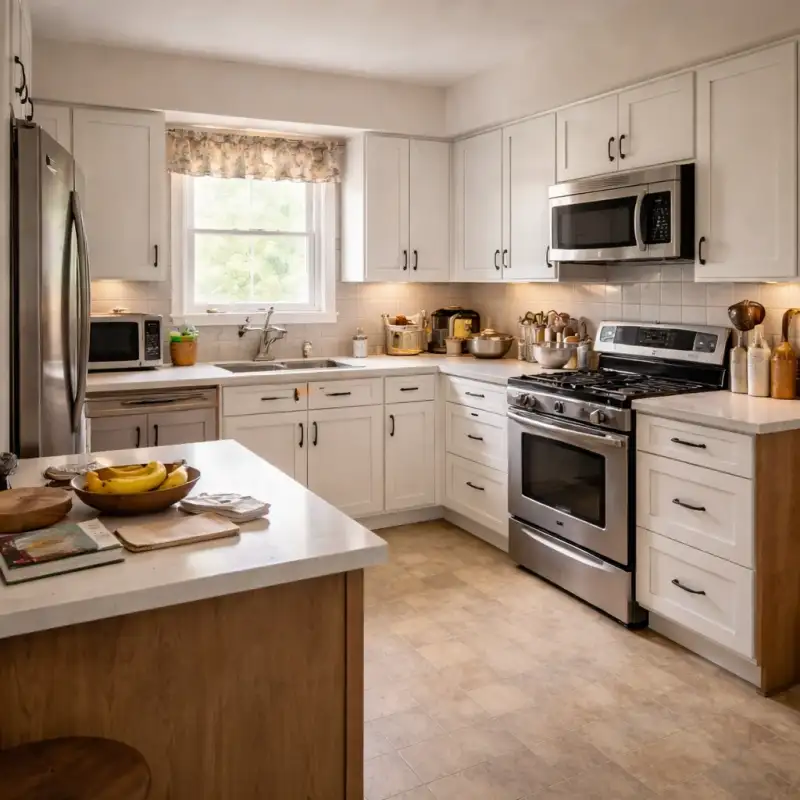
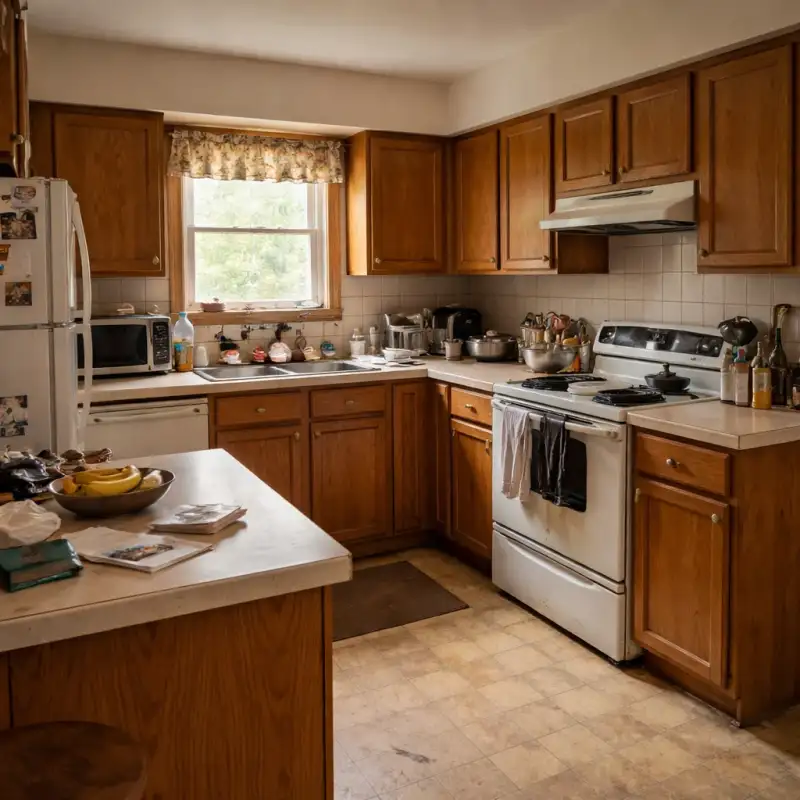
Examples
Real rooms, before and after
Tap or hover to see each transformation.
Kitchen changes are the most expensive guesses in the home. Cabinet color, island size, pendant placement, backsplash direction — each is a four-to-five-figure decision made from a paint chip and a prayer. And kitchens are unforgiving: a color that looked warm in the showroom goes flat under your north window, and an island that fit the showroom's 12-foot aisle crowds your 8-foot one.
A kitchen visualizer tests the direction in your actual kitchen before money moves. Upload a photo — the full run of cabinets, the island zone, the window — and describe what you are considering: darker lowers, a full repaint, new pendants, open shelving. The preview renders it onto your real cabinets in your real light, which is where undertones tell the truth.
One honest boundary: the visualizer compares layouts and finishes visually. It does not re-route plumbing, gas, or structure — those are contractor decisions with real rough-in costs. Use it to reject the wrong direction cheaply, then take the winning preview to a professional as the brief.
How it works
Snap your room, compare design directions, and use the best result as your shopping and styling brief for kitchen visualizer – preview changes in your kitchen.
Photograph the full kitchen in daylight
Capture the cabinet runs, the island zone, and the windows. Kitchen color decisions live or die by natural light, and the preview needs the real light to be honest.
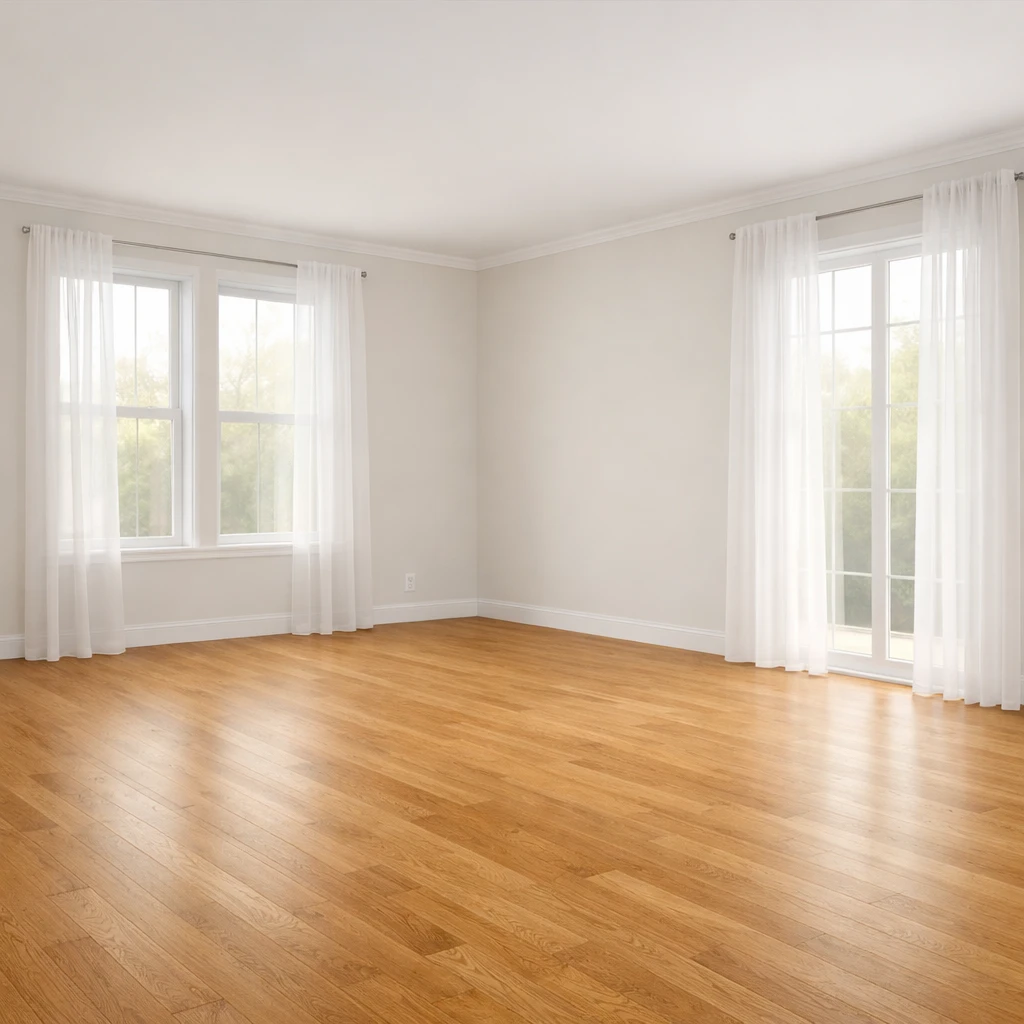
Describe the direction, not the whole renovation
Darker lower cabinets, a full repaint, new pendants, a different backsplash — one clear direction per preview produces cleaner comparisons than a total fantasy remodel.
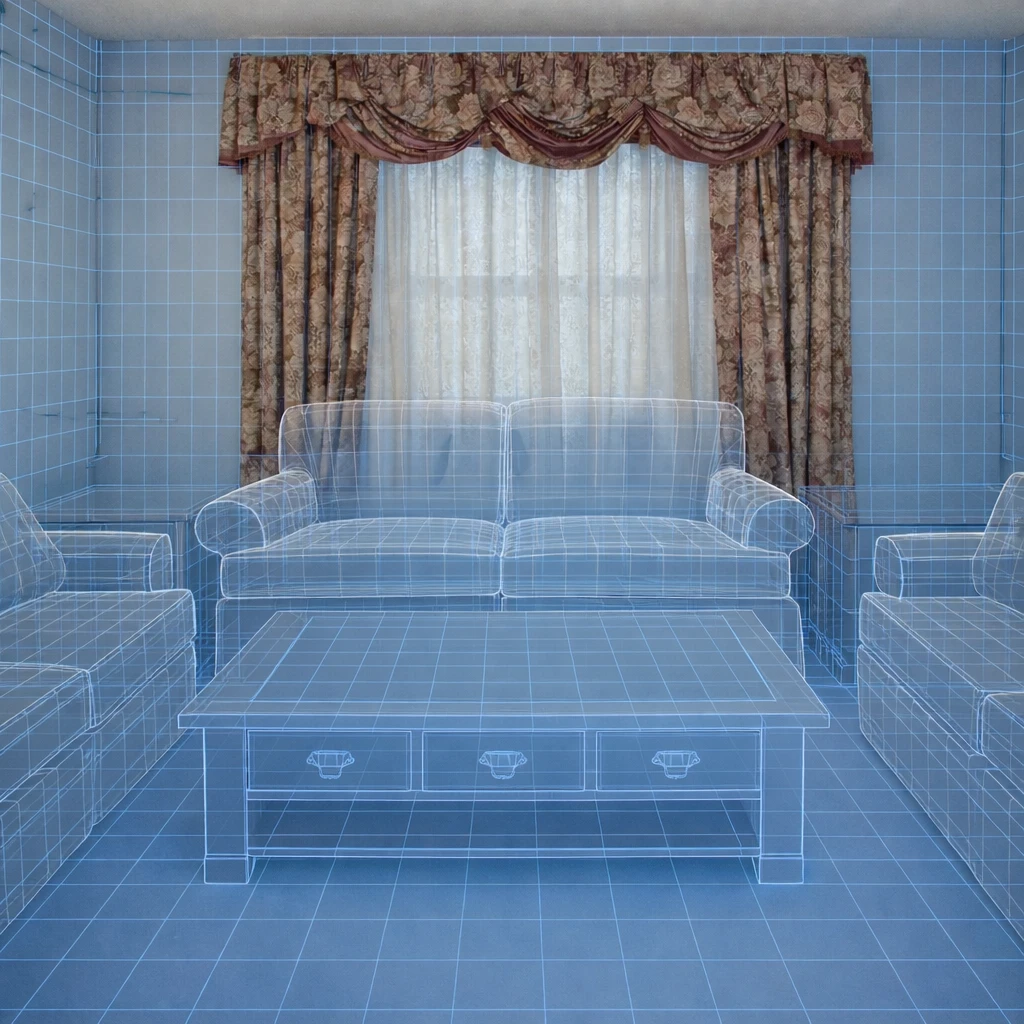
Compare the bold direction against the safe one
Test the dark green lowers against a lighter neutral in the same kitchen. Seeing both on your actual cabinets in your actual light settles debates that paint chips never could.
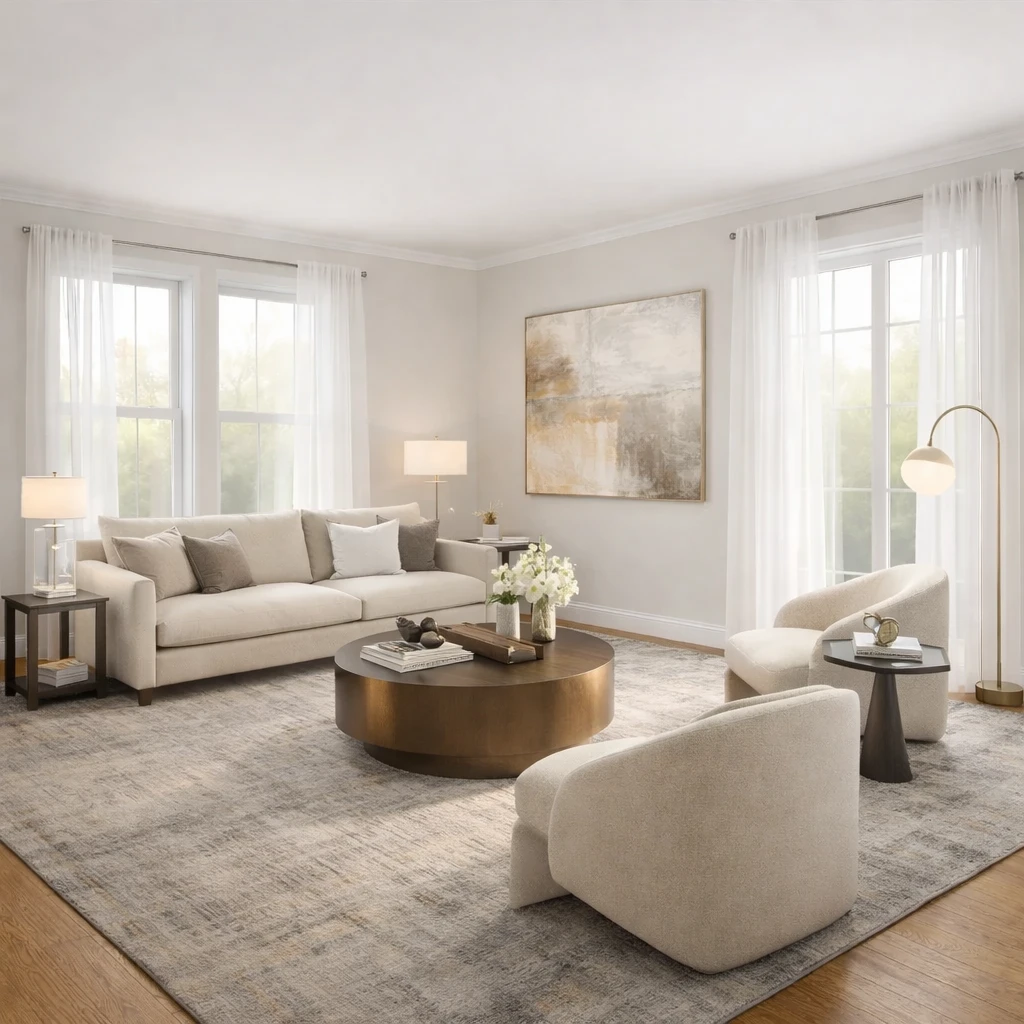
Take the winning preview to a professional as the brief
Anything touching plumbing, gas, or structure needs a contractor. The preview's job is to make that conversation specific: this color, this island proportion, this lighting plan.
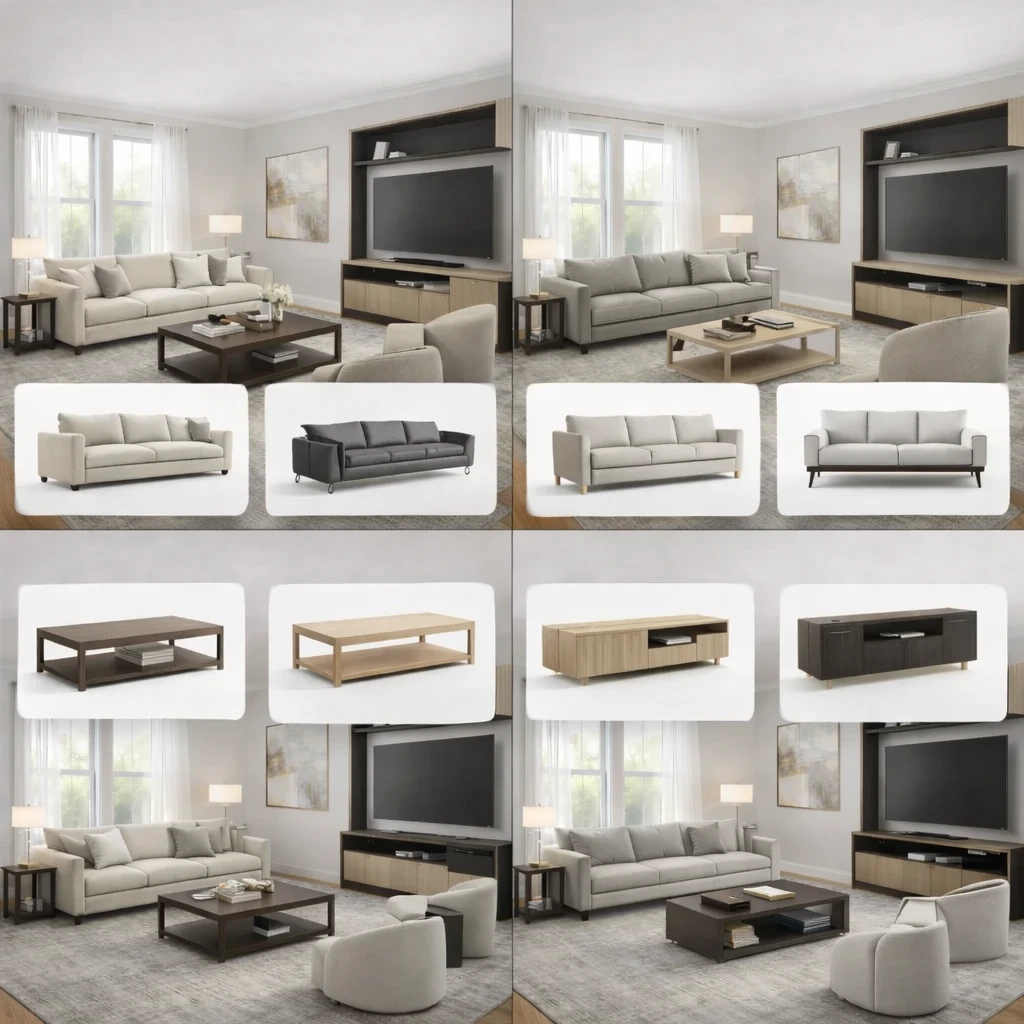
Do this first
- 1Use one wide room photo with doors, windows, and the major furniture zone visible.
- 2Decide what you are testing first: layout, style direction, or product fit.
- 3Generate at least two or three directions before choosing a winner.
- 4Use the strongest result as the brief for your next purchase decisions.
Before you buy
- !Check measurements before buying large items, even if the concept looks right.
- !Compare at least one lower-cost and one higher-cost alternative before checkout.
- !Review delivery windows and return terms for larger pieces.
- !Save the chosen direction so future purchases stay visually consistent.
Best for
- Living rooms, bedrooms, offices, and apartments where layout is the main blocker
- People deciding what to buy before they order furniture
- Testing if a new arrangement feels more open or more functional
Know before you start
- iNot a CAD floor-planning or contractor-drawing tool
- iNot a substitute for exact onsite measurements before final purchase
- iNot ideal when you need permit-ready renovation documentation
Source Furniture After the Layout Direction Is Clear
Use the chosen layout to shortlist furniture that supports the plan instead of browsing products without room context.
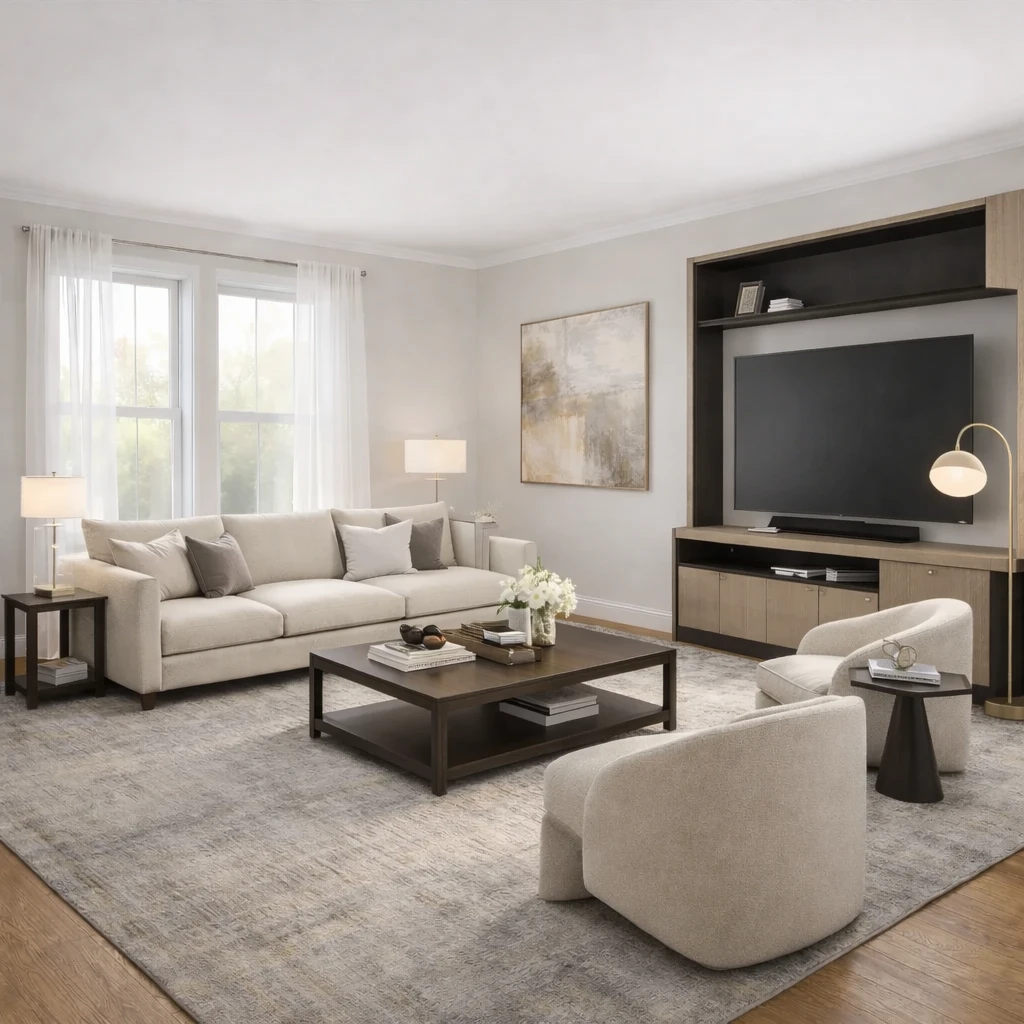
Stage 1
Product matching from your room context
Recommendations are generated from the actual room concept—not generic mood boards. Each product suggestion is sized and positioned to work with your specific room proportions, lighting conditions, and existing architectural features.
Stage 2
Compare alternatives by style, price, and availability
Review multiple matched options across different retailers (Amazon, IKEA, eBay, and regional stores) and choose the price-quality tradeoff that fits your budget. Compare delivery times, return policies, and customer reviews alongside visual fit.
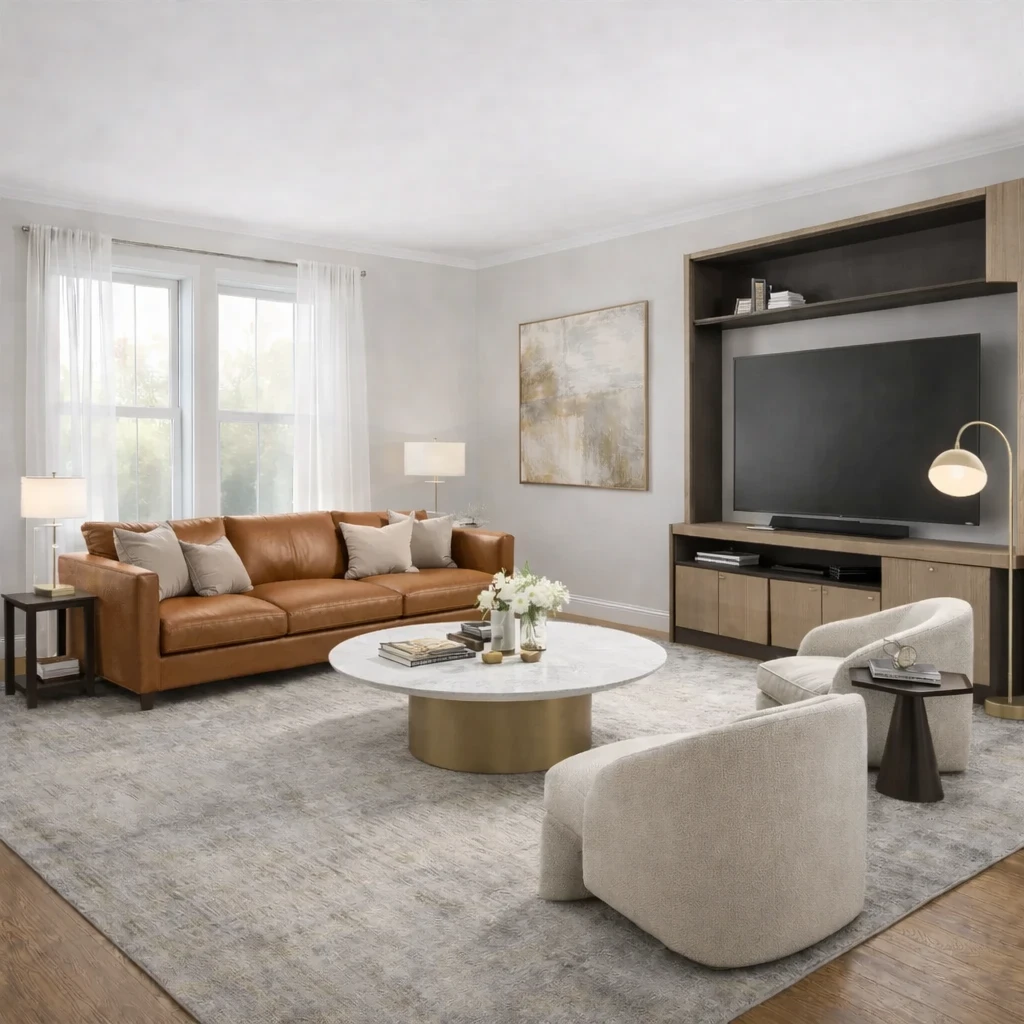
Stage 3
Apply swaps before purchase
Preview replacements directly in the visual concept—no need to order, return, and reorder to find what works. Test whether a less expensive alternative achieves similar visual impact before committing your budget.
AI Room Planner FAQs
Questions people ask when using a room photo to test layout and furniture directions.
What Innie can do for kitchen visualizer – preview changes in your kitchen
More AI design tools
Browse all guidesAI Room Planner From Photo
Compare layout directions against your actual room before moving furniture or committing to purchases.
Bedroom Visualizer – Preview Designs in Your Room
Test bed placement, storage, and lighting in your actual bedroom before you move a single piece.
Dorm Room Visualizer – Preview Your Dorm Makeover
Test layouts, storage, and no-drill upgrades in your actual dorm before move-in day.
Home Office Visualizer – Preview Your Workspace
Test desk placement, glare, and storage in your actual room before you buy the wrong desk.
Living Room Visualizer – Preview Layouts in Your Room
Test layouts, sofas, and rugs in your actual living room so the next purchase lands right the first time.
AI Furniture Placement From Your Room Photo
Upload your room photo to compare furniture directions that improve flow, balance, and function before you move or buy anything.
Try Kitchen Visualizer – Preview Changes in Your Kitchen on your own room
Use a kitchen visualizer to preview cabinet colors, islands, and lighting in your actual kitchen. Upload a photo and compare directions before you commit.
Free to start. No credit card required.
See the full Innie flow in one clean walkthrough.
Watch the real Innie workflow from upload to redesign to shoppable picks.

Innie
YouTube walkthrough